Microsoft Edge: Browse with AI

50,000,000+
Installs
Microsoft Corporation
Developer
-
Social
Category
-
Rated for 3+
Content Rating
-
edge_ef@microsoft.com
Developer Email
-
https://go.microsoft.com/fwlink/?LinkId=521839
Privacy Policy
Screenshots
editor reviews
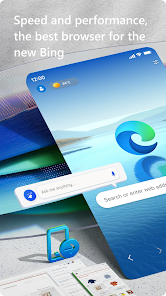
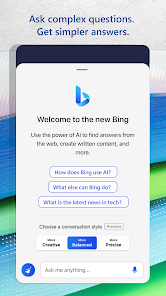
Microsoft Edge is a web browser developed by Microsoft, designed to replace the aging Internet Explorer as the default browser on Windows. It's built on the Chromium engine, which means it shares a lot of underlying technology with Google Chrome, so websites generally load fast and work correctly. People mostly use it for everyday browsing, but Microsoft has packed it with extra tools like collections for organizing research, a built-in PDF reader, and a vertical tabs feature. Beyond that, the main draw now is the integrated Copilot AI, a chatbot that can summarize pages, compose text, or answer questions based on what you're looking at. When you download and install it from Google Play or the App Store—it's free, by the way—the first impression is that it feels very familiar if you've used Chrome before, but there's a distinct, slightly busy toolbar at the bottom with a big Copilot icon. It immediately makes you wonder if you'll actually use that AI helper or if it's just clutter.
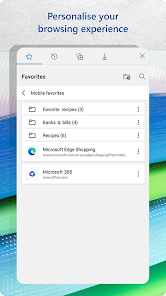
After launching it and signing in with a Microsoft account—required if you want to sync bookmarks and passwords—the hands-on experience is mostly smooth. The interface is clean, with a search bar on top and shortcuts for news and bookmarks. When you start typing a URL or a query, the address bar works fine, and pages load quickly. The real standout is the onboarding flow for Copilot: a short tutorial walks you through tapping the icon and asking it to summarize the current page. In daily use, the browser feels responsive, though it can stutter slightly on older phones if you have too many tabs open. A handy tip: the "Collections" feature actually works well for keeping track of shopping lists or articles you want to read later, which is more useful than I expected. I did find the default start page a bit too heavy with news cards and ads, but you can customize it in settings. Overall, it's a browser that does everything a standard browser should, but it asks you to engage with Microsoft's ecosystem more than you might like.
After using Edge for a few weeks on my phone, I can see who'd like it and who wouldn't. It's perfect if you're already in the Microsoft world—using Windows on your desktop, Office, or OneDrive—because the syncing just works and the AI integration is genuinely helpful for quickly summarizing long articles. But if you're a straightforward Chrome or Firefox user who just wants a no-nonsense browser without extra bells and whistles, Edge might feel a bit overstuffed. Compared to Chrome, it's noticeably heavier on features, but also more flexible. I ended up keeping it installed mainly for the AI summaries, which save me time when reading news, but for general browsing I still find myself defaulting to Firefox for its privacy focus. It's not a bad browser at all, but it's clearly built for people who want an assistant, not just a page viewer.
features
- 🤖 Copilot AI Integration: Unlike Chrome's basic search bar, Edge lets you tap the Copilot icon to summarize a page, rewrite text, or ask follow-up questions. It works like a personal assistant for browsing, which Chrome lacks entirely. This is the biggest differentiator and a genuinely useful feature.
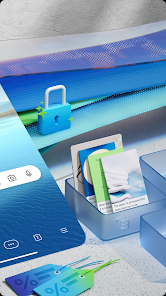
- 📚 Collections for Organization: Chrome has bookmarks, but Edge's Collections let you group pages, images, and notes into thematic folders. You can drag and drop items from a page directly into a collection, making research or shopping planning much easier than Chrome's simple bookmark system.
- 📄 Built-in PDF Reader and Translator: Edge's PDF reader is better than Chrome's, with options to annotate and highlight. It also has a one-tap page translator that works smoothly without needing an extension. Chrome requires extra steps for both.
- 🔒 Vertical Tabs and Sleeping Tabs: Edge lets you switch to a vertical tab layout, which is helpful on phones with narrow screens. It also puts inactive tabs to sleep to save memory. Chrome has tab grouping, but these two features are more practical for mobile multitasking.
pros
- 📱 Smooth Cross-Device Sync: Edge syncs seamlessly with Windows PCs and Android tablets. If I start reading an article on my phone, I can pick it up exactly where I left off on my laptop. Chrome does this too, but Edge's sync feels faster and more reliable with Microsoft services.
- 🛡️ Privacy and Ad Blocker Built-In: Edge comes with a decent ad blocker and tracking prevention out of the box, better than Chrome's default settings. Combined with InPrivate mode, it offers a quieter browsing experience without extra extensions.
- ⚡ Low Memory Usage on Mobile: While Chrome can be a memory hog on phones, Edge handles multiple tabs surprisingly well without draining the battery or slowing down the device. It's a practical choice for budget phones.
cons
- 🔔 Too Many Built-in Prompts: Edge constantly pushes Microsoft services—Bing, OneDrive, Copilot—with pop-ups and notifications. It feels pushy compared to Firefox, which stays out of your way. I often find myself dismissing banners I never asked for.
- 📊 Default Start Page Is Cluttered: The new tab page is filled with news, weather, and sponsored content. Chrome's start page is simpler, and Firefox's is even cleaner. It takes extra steps to clean it up, which is annoying for a first-time user.
- 🔄 Occasional Sync Conflicts: When I have Edge open on both my phone and PC, sometimes bookmarks don't sync properly or duplicate appear. Chrome and Firefox handle cross-device sync more reliably without such hiccups.
- 🛑 Limited Extension Support on Mobile: Unlike Chrome's mobile version, Edge's Android extension support is very limited. You can't install many useful add-ons like ad-blockers or password managers beyond what's pre-installed, which is a drawback for power users.
Recommended Apps
![]()
16Personalities
16Personalities4
![]()
Zodiac Palm Reader: MagicWay
Reatility Media4.6
![]()
Moblo - 3D furniture modeling
MYTIforge4.1![]()
Magnifier Plus with Flashlight
Digitalchemy, LLC4.6![]()
QR Code Scanner
QR Code Scanner & Barcode Reader4.7![]()
FalFal: Astrology, Tarot, Love
FalFal Team4.8![]()
Christmas Photo Frames
PhotoFramesApps4.6![]()
AI Video Art Creator - Livensa
FERASET4.5![]()
Horoscope of Birth
Denimaks4.4![]()
Make Me Bald Prank
AppTornado2.5![]()
Kling AI: AI Image&Video Maker
Lohas Games Pte. Ltd.4.4![]()
Japan Timetable & Route Search
NAVITIME JAPAN CO., LTD.4.3![]()
Prank Call & Funny Video
TeH Software0![]()
Parallax 3D Live Wallpapers
TarrySoft4.3![]()
AI Chatbot - Nova
ScaleUp4.7












Disclaimer
1.AppInfoLibrary does not represent any developer, nor is it the developer of any App or game.
2.AppInfoLibrary provide custom reviews of Apps written by our own reviewers, and detailed information of these Apps, such as developer contacts, ratings and screenshots.
3.All trademarks, registered trademarks, product names and company names or logos appearing on the site are the property of their respective owners.
4. AppInfoLibrary abides by the federal Digital Millennium Copyright Act (DMCA) by responding to notices of alleged infringement that complies with the DMCA and other applicable laws.
5.If you are the owner or copyright representative and want to delete your information, please contact us info@appinfolibrary.com.
6.All the information on this website is strictly observed all the terms and conditions of Google Ads Advertising policies and Google Unwanted Software policy .