
Microsoft Teams

100,000,000+
Installs
Microsoft Corporation
Developer
-
Business
Category
-
Rated for 3+
Content Rating
-
mstandstore@microsoft.com
Developer Email
-
https://aka.ms/privacy
Privacy Policy
Screenshots


editor reviews
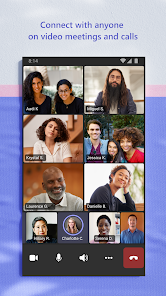
If you work in an office or collaborate with a team remotely, you've likely heard of Microsoft Teams. It's a business communication and collaboration platform, sitting somewhere between a chat app and a full-fledged meeting hub. People mainly use it for instant messaging, video conferencing, file sharing, and managing team projects all in one place. You'd download and install it from the Google Play or App Store because your company or school requires it—hardly anyone just stumbles upon it for fun. After launching the app for the first time, the first impression is that it feels dense, almost like walking into a busy lobby. There's a lot happening on the screen: multiple tabs at the bottom, a left sidebar with channels or chats, and pop-ups for status updates. It's not the most welcoming start, but if you're used to office software, it's not a shock either. The app is free to download, but most features only make sense with a paid work or school account, and since it's Microsoft, you'll see no random ads, just occasional prompts to upgrade your plan.
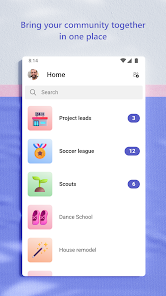
After you log in with your work credentials, the real hands-on experience begins. The interface is organized around tabs at the bottom: Activity, Chat, Teams, Calendar, and Calls. For daily use, you start by checking your Chat tab for direct messages or the Teams tab where your department's channels live. If your team is active, you can expect a flood of notifications from multiple channels, which can be overwhelming at first. A simple tip is to mute channels that aren't urgent. Starting a video call is straightforward: tap the Meet button in any chat or channel, and you can join within seconds. The app feels responsive most of the time, but switching between chats and channels sometimes takes a second to load, especially if you have a lot of history. File sharing works well—you can send a document from your phone's gallery or directly from OneDrive. One confusing moment I had was finding the search bar; it's hidden in the top-left icon instead of being prominently displayed. Overall, the onboarding feels like a crash course in corporate navigation.
After using it for a while, I can say this app is great for large organizations that are already deep in the Microsoft ecosystem. If your company uses Outlook, SharePoint, and OneDrive, Teams ties everything together seamlessly. But if you just need simple chat or a lightweight video call, something like Slack or Google Meet might feel faster and less cluttered. What makes Teams different is how it tries to be everything at once: chat, meetings, file storage, and even task management with Planner integration. It's a bit like a Swiss Army knife—handy when you need all the tools, but bulky when you just need a blade. I've kept it installed because my team relies on it, but I've heard colleagues switch to other apps for quick, casual chats. The app can feel heavy, and running it alongside other Microsoft apps drains battery quickly on mobile. It's a capable app for the right user, but not something you'd install for personal use.
features
- 💬 Unified Communication Hub: Unlike WhatsApp, which mainly focuses on messaging, Microsoft Teams combines chat, video calls, file sharing, and project management. You don't need to switch between apps to talk to a colleague and then send a document—it's all in one thread.
- 📁 Deep Office Integration: While Slack connects to many third-party tools, Teams naturally syncs with Word, Excel, SharePoint, and OneDrive. You can edit a document live during a meeting without leaving the app, which feels smooth for heavy Office users.
- 🔍 Channel Organization: Unlike a simple group chat in Telegram, Teams lets you create separate channels for each topic or department. This keeps conversations focused and searchable, instead of everything mixing in one big noisy log.
pros
- 👍 Enterprise-Grade Security: Teams offers compliance standards that smaller apps like Zoom don't match. For companies handling sensitive data, this is a huge plus.
- 👍 Built-In Calendar Integration: Your Outlook calendar shows up directly in the app, so scheduling a meeting and joining it are two taps away. Slack requires extra plugins for this.
- 👍 Large File Sharing: You can send files up to 100GB (with SharePoint), whereas Telegram or WhatsApp cap at 2GB or much less. For teams working with videos or datasets, this matters.
cons
- 👎 Heavy on Resources: The app eats up RAM and battery like crazy. On a mid-range Android phone, it lags noticeably. Zoom runs much lighter in comparison.
- 👎 Cluttered Interface: With all the tabs and channels, finding a specific message feels messy. Slack's UI is cleaner and more intuitive for quick scanning.
- 👎 Notification Overload: By default, you get alerts from every channel you're in. It's easy to miss important messages because of the noise, unlike WhatsApp or Signal where you control groups better.
Recommended Apps
![]()
16Personalities
16Personalities4
![]()
Zodiac Palm Reader: MagicWay
Reatility Media4.6
![]()
Moblo - 3D furniture modeling
MYTIforge4.1![]()
Magnifier Plus with Flashlight
Digitalchemy, LLC4.6![]()
QR Code Scanner
QR Code Scanner & Barcode Reader4.7![]()
FalFal: Astrology, Tarot, Love
FalFal Team4.8![]()
Christmas Photo Frames
PhotoFramesApps4.6![]()
AI Video Art Creator - Livensa
FERASET4.5![]()
Horoscope of Birth
Denimaks4.4![]()
Make Me Bald Prank
AppTornado2.5![]()
Kling AI: AI Image&Video Maker
Lohas Games Pte. Ltd.4.4![]()
Japan Timetable & Route Search
NAVITIME JAPAN CO., LTD.4.3![]()
Prank Call & Funny Video
TeH Software0![]()
Parallax 3D Live Wallpapers
TarrySoft4.3![]()
AI Chatbot - Nova
ScaleUp4.7














Disclaimer
1.AppInfoLibrary does not represent any developer, nor is it the developer of any App or game.
2.AppInfoLibrary provide custom reviews of Apps written by our own reviewers, and detailed information of these Apps, such as developer contacts, ratings and screenshots.
3.All trademarks, registered trademarks, product names and company names or logos appearing on the site are the property of their respective owners.
4. AppInfoLibrary abides by the federal Digital Millennium Copyright Act (DMCA) by responding to notices of alleged infringement that complies with the DMCA and other applicable laws.
5.If you are the owner or copyright representative and want to delete your information, please contact us info@appinfolibrary.com.
6.All the information on this website is strictly observed all the terms and conditions of Google Ads Advertising policies and Google Unwanted Software policy .